Showing posts with label design. Show all posts

Pulling Your Flickr Feed with jQuery

Feeds are the easiest way to view updated content, whether it's through a feed reader or outputted onto a web site. There are many different types of feeds, such as RSS or Atom, and many different ways display them on your site, such as using MagpieRSS to parse an RSS feed in PHP. However, you can also display feeds on your site using JavaScript, so in this post I'm going to be talking about a feed format called JSON and how you can use JavaScript to parse it out and display it.
JSON (JavaScript Object Notation) is a data format that is easy to read and language-independent, meaning you can parse it using any programming language. Both Yahoo! and Google have been offering data from their sites in JSON format for the past couple years. A good example of this is Flickr. Anyone with a Flickr account can access a JSON feed of their photos.

Finding Your Feed

If we go to the Viget Inspire collection on Flickr, we can click on the feed (orange button, bottom of the page) and bring up a RSS 2.0 feed of all the images in our pool. Flickr's API has many other feed formats, so I suggest going to their site to read up on it because there are a lot of things you can do. If you want the JSON version of the feed, change "format=rss_200" at the end of the query string to "format=json" so that your URL looks like this:

http://api.flickr.com/services/feeds/groups_pool.gne? id=675729@N22&lang=en-us&format=json

Bringing It Into jQuery

So now that you have your JSON feed, lets put it to good use. My co-workers and I are big fans of the JavaScript framework jQuery. With version 1.2, jQuery added support for transferring JSON data across multiple domains (this is referred to as JSONP), so in this example we'll be using it to do all the JavaScript work for us. First off, make sure you've downloaded the latest version of jQuery and added it to your page. Next, add "jsoncallback=?" to the end of your query string (this is the callback name) and put the code inside <script> tags to get things running:

$.getJSON("http://api.flickr.com/services/feeds/groups_pool .gne?id=675729@N22&lang=en-us&format=json&jsoncallback=?", function(data){
  $.each(data.items, function(i,item){
    $("<img/>").attr("src", item.media.m).appendTo("#images")
      .wrap("<a href='" + item.link + "'></a>");
  });
});

See how that function has appendTo("#images")? The JavaScript will be looking for a div with an id of "images" to pull in all the images coming in through the feed, and then wrapping them in a link to the images on Flickr. If you try it out you'll notice it just displays all the images in a row. Obviously this doesn't look very good, so you can use CSS and jQuery to display things nicely. I decided to use the jQuery cycle plugin which has numerous cool effects. Download the plugin and make sure you include a link to it in your page. So at this point your HTML should look something like this:

<div id="images"></div>  
<div class="flickrNav">
    <a id="prev" href="#">Prev</a><a id="next" href="#">Next</a>
</div>

and the CSS could be something like this:
#images { height: 185px; width: 240px; padding:0; margin:0; overflow: hidden;}
#images img { border:none;}

Then we'll add in the cycle plugin code inside our initial function that creates the images out of the JSON feed:

$.getJSON("http://api.flickr.com/services/feeds/groups_pool .gne?id=675729@N22&lang=en-us&format=json&jsoncallback=?", function(data){
  $.each(data.items, function(i,item){
    $("<img/>").attr("src", item.media.m).appendTo("#images")
      .wrap("<a href='" + item.link + "'></a>");
  });
  $('#images').cycle({
    fx:     'fade',
    speed:    'fast',
    timeout:  0,
    next:   '#next',
    prev:   '#prev'
  });
});


Notice that I put some options in the cycle method for previous and next id's. As you can probably guess, these links will allow the user to navigate through the list of images.

Getting More Than Just Pretty Pictures

At this point images should be showing up, but that JSON feed has a lot of other information in it you can pull in. For any attribute you want to display you just need to write it in the format of $("div name you are targeting").html(name of JSON object you want to display). In our example, if we wanted to show the title of the photo pool, the description of the pool, and a link to the pool on Flickr we would write the following into our jQuery function:

$.getJSON("http://api.flickr.com/services/feeds/groups_pool .gne?id=675729@N22&lang=en-us&format=json&jsoncallback=?", function(data){
  $.each(data.items, function(i,item){
    $("<img/>").attr("src", item.media.m).appendTo("#images")
      .wrap("<a href='" + item.link + "'></a>");
  });

  $("#title").html(data.title);
  $("#description").html(data.description);
  $("#link").html("<a href='"+data.link+"' target=\"_blank\">Visit the Viget Inspiration Pool!</a>");
    //Notice that the object here is "data" because that information sits outside of "items" in the JSON feed

  $('#images').cycle({
    fx:     'fade',
    speed:    'normal',
    timeout:  0,
    next:   '#next',
    prev:   '#prev'
  });
});


Notice that we have to call items based on where they are located in the JSON feed. For example, "item.link" will link to the image but "data.link" will link to the overall photo pool. You can look at the actual JSON feed and see how its organized. Next add the HTML so jQuery has something to update:

Now you've got yourself a nice feed of Flickr images and can all the CSS you want to make it look more stylish:

Viget Inspiration group Pool

The design lab at Viget Labs putting together colors, sites, and anything else that visually inspires us. This group is just so the designers have something the site (www.viget.com/inspire) can pull from, so don't feel bad if you don't get added!
 
READ MORE - Pulling Your Flickr Feed with jQuery

Stylish Title Blogger Post

If you have seen the post titles of this blog, you must have understood that the font is different from the other blogs. Even you can change the font of your blog easily. Check the picture below to see the font that I have used for my blog post titles.


To change the font of your blog post titles, visit the Layout of the blog template and click on Edit HTML option. Select the Expand Widget Templates option. Now search .post h3 or .post h2 , whichever is present in your template.

If .post h3 is present in the template, the code will be similar to the one shown below

.post h3 {
margin: 0 0 5px;
padding-bottom:6px;
}
.post h3 a, #content h1 a:visited {
color: #A0A2F9;
font-size: 18px;
font-family: Waltograph UI,trebuchet ms, tahoma, Verdana, Arial, Sans-Serif;
font-weight: normal;
margin: 0 0 5px;
padding: 0;
text-decoration:none;
text-align:left;
line-height:1.4em;
}

The main thing you should check is that font-family should be present in either  .post h3 or .post h3 a . Once you find font-family , just add the font that you want at the beginning just as I have added Waltograph UI in the beginning.

That's it, now click on the Preview button to check whether the font has been implemented or not.

However if .post h3 isn't present in the template, then search for .post h2 and apply the same steps as given above for .post h3

However some templates dont have the .post h2 code in the template. For that first search .post in the template and paste the following code just above it


 .post h2 {
    color: #A0A2F9;
    font-size: 28px;
    font-family: Waltograph UI,trebuchet ms, tahoma, Verdana, Arial, Sans-Serif;
    font-weight: normal;
    margin: 0 0 5px;
    padding: 0;
    text-decoration:none;
    text-align:left;
    line-height:1.4em;
}


Just replace Waltograph UI with the font that you want. You can change the code to change the size, colour and other characteristics of the post title.

Here are some examples for you

Font Name: Amelia-Normal


Font Name: File


 Font Name: PicoBlackAl


Font Name: Vanilla


If you want to download some awesome fonts, then check 20 Cool Hand Drawn Fonts . Now its up to you to decide which font you want for your blog. I hope that you found this post useful.
READ MORE - Stylish Title Blogger Post

adding twitter @anywhrere to Blogger

Last month twitter made the @anywhere live which allows you to add many great twitter features on your blog. Of them, the Hovercards feature is being widely used. In this tutorial, we will explain you how to add the twitter @anywhere Hovercard feature to your blogger blog.


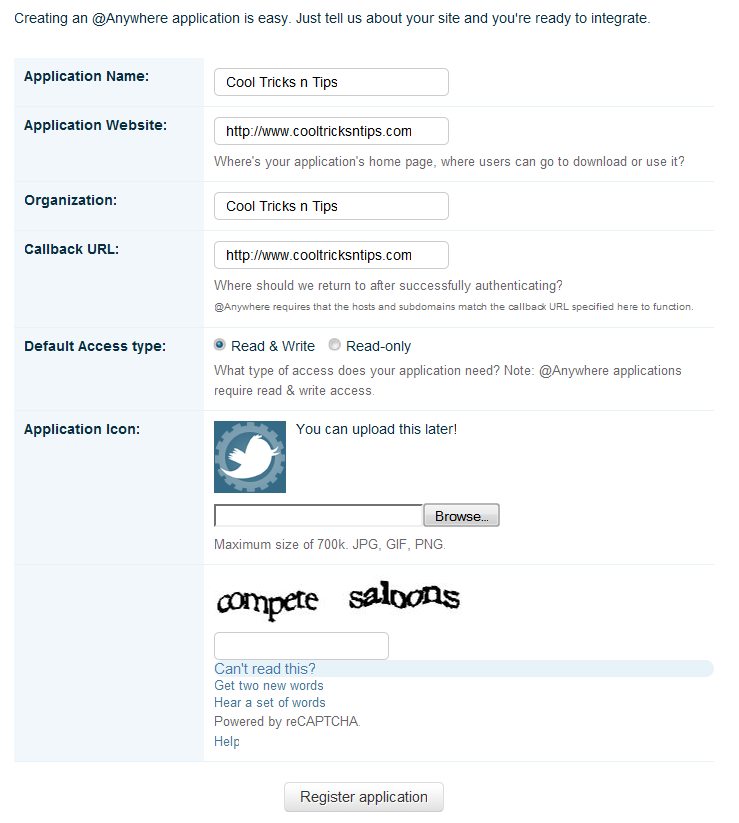
First you will have to create an @Anywhere application. You will have to fill some information as show below


Fill any name you want for the Application name and Organization. For the Application Website and callback URL use your blog address. Keep the Default Access Type as Read & Write and then enter the CAPTCHA and press the Register Application button.

You will now be taken to a page where you will see the code for twitter @anywhere.


Just copy the code between <head> and </head> tags. Now go to the Layout option for your blogger blog and click on Edit HTML option, search </head> and paste the code just above it.

Now save the template and visit your blog. You can try the @anywhere feature by adding @YourUsername in the blog post or comments section. However if you are using comment tools like Intense Debate or Disqus , then the @anywhere feature wont work in the comments section.
READ MORE - adding twitter @anywhrere to Blogger

Add DISQUS Comments To Blogger Blog

DISQUS Comments Blogger

We have already shown you How To Add Intense Debate To Blogger Blog. Now in this post we will explain how to add DISQUS Comments to your blogger blog. DISQUS is a very popular blog comment system which is being used by many popular blogs like Mashable.


Adding it to your blogspot blog is simple and it won't take much time to add it to your blog. First visit DISQUS Comments and create an account and register your blog. Once you do that, you reach the Quick Setup page where you can choose the preferred language. Other options include, adding Facebook Connect, Media Attachments, Akismet, Reactions, Trackbacks.

DISQUS Comments Blogger

Once you select the options, click on the Continue button. You will see a list of blogging platforms where you can install DISQUS. Choose Blogger as your platform.

DISQUS Comments Blogger

Now you will see Installation Instructions for Blogger platform. First you have to download the Blogger template on which you want to add DISQUS. To download the template, visit the Edit HTML option in Design section of the blog. You will find the Download Full Template option on that page.

DISQUS Comments Blogger

Now you have to upload the template and decide whether you want to add DISQUS only on new posts or on all the blog posts.

DISQUS Comments Blogger

Now you will be taken to a page where in the first step you will see your template code which you will have to add to your blog. Select and copy the code given in step 1 and then go to Edit HTML option of your blogger blog. Select the Expand Widget Templates option. Now select all the code given below and replace it with the code given in Step 1.

DISQUS Comments Blogger


Once you have replaced the code, Save the template and check you blog. You will see that DISQUS has been added to your blog. In the 2nd Step you will have to import the existing comments if you have selected to add DISQUS on all blog posts. If you were using other comment systems like Intense Debate, JS-Kit on your blogger blog, then you can also import the comments. You have to download the Comments XML file from the earlier comment system and upload it to DISQUS.

That's it, now DISQUS has been installed on your Blogger blog. Hope you loved this post.
READ MORE - Add DISQUS Comments To Blogger Blog

Create Date and Day in Blogger

1.Log in to your dashboard--> layout- ->Page Elements

2.Click on 'Add a Gadget'.

3.Select 'HTML/Javascript' and add the code given below and click save.

Select HTML/JavaScript

<script type='text/javascript'>

var mydate=new Date()
var year=mydate.getYear()
if (year < 1000)
year+=1900
var day=mydate.getDay()
var month=mydate.getMonth()
var daym=mydate.getDate()
if (daym<10)
daym="0"+daym
var dayarray=new Array("Sunday","Monday","Tuesday","Wednesday","Thursday","Friday","Saturday")
var montharray=new Array("January","February","March","April","May","June","July","August","September","October","November","December")
document.write("<p>"+dayarray[day]+", "+montharray[month]+" "+daym+", "+year+"</p>")

</script>


You are done.Now you can see it as picture below.

Show Date,Month,Year on Blogger
READ MORE - Create Date and Day in Blogger

Add YouTube Style Search Button To You Blog

If you have visited YouTube , then you must have seen the the Search Box at the top of the site along with the Search button. Its a very simple looking button using hover effects to show shadow whenever you move the mouse over the Search button. This is very simple to implement on your blog for the search button and you can also use it for the Adsense Blog Search button just as I am using it on this blog. We are going to use the CSS moz-box-shadow to achieve this effect.


Adding this is very simple thing. If you already have a search box on your blog then check its code and if you don't have it you can use the Google Adsense search box. All you have to do is find the part of the code where you will get type="submit" . In that part you will have to change the value of value as shown: value="sbutton" . This is how it should appear.


<input class="sbutton" value="Search" name="sa" type="submit" />
Once you have done that, you will have to add its CSS part to make it work. If the code of the search box is present in the template, then you will have to add the CSS part of the code in the CSS section. But if you are using the Search box as a widget, then you will add it in the widget itself, considering its a HTML/JavaScript widget.

Here's the CSS part. Remove the <style> and </style> part of the code if you are pasting it in the CSS section.

<style>
.sbutton{
background:#F4F4F4;
width:70px;
height:25px;
border:none;
-webkit-transition:  -webkit-transform .15s linear;
-webkit-box-shadow: 0 0 4px rgba(0,0,0,.25);
-moz-box-shadow: 0 0 4px rgba(0,0,0,.25);
-moz-border-radius-bottomleft:4px;
-moz-border-radius-bottomright:4px;
-moz-border-radius-topleft:4px;
-moz-border-radius-topright:4px;
border:1px solid #CCCCCC;
}

.sbutton:hover {
-webkit-box-shadow:  0 0 4px rgba(0,0,0,.5);
-moz-box-shadow: 0 0 4px rgba(0,0,0,.5);
}
</style>
That's it, now you have added the YouTube style search button to your blog. If you are facing any problem, then do tell us. Hope you enjoyed the post.
READ MORE - Add YouTube Style Search Button To You Blog

Add Mashable Style Social Media to Blogger

You must have seen the Social Media widget that was used by Mashable for a certain period of time. This widget looks attractive and has nice effect to it, which makes it appealing to the eyes.This is great as you can get many visitors to your social media profile from them and is a great way to increase your contacts on other networks with the help of your blog. If you havent seen the widget before, then check the image below to get an idea.


Mashable Social Media Widget

It is very easy to add this widget to your blog, be it a Blogger(Blogspot) blog or a Wordpress or belonging to some other platform. However, as this blog is for blogger platform, we will explain how to add this Social Media widget to your Blogger blog.

To add it to your blog, visit the Design section of your blog and in the Page Elements section, click on Add a Gadget. In it, choose the HTML/Javascript option and paste the following code in it.


<style>
/* subscribe widget */
#subscribe1 { background:#f3f3f3; height:60px;width:288px; margin:0px 0px 15px 0px; padding:8px 5px; border:1px solid #e6e6e6; border-bottom:1px solid #e6e6e6; font-size:90%; }
.subscribe_icons { width:286px; margin:0px auto; }
.subscribe_icons li { display:inline; float:left; margin:0px 2px 5px 2px; width:52px; text-align:center; font-size:11px; }
.subscribe_icons a { display:block; padding:40px 0px 2px; -webkit-transition:all .2s ease-out; -moz-transition:all .2s ease-out; color:#444 !important; }
.subscribe_icons a:hover { color:#26b !important; text-decoration:none; -moz-box-shadow:0px 2px 4px hsla(0,0%,0%,.35); -webkit-box-shadow:0px 2px 4px hsla(0,0%,0%,.35); }
.subscribe_icons .subscribe_twitter a { background:url(http://i49.tinypic.com/2mq2es5.png) center top no-repeat; }
.subscribe_icons .subscribe_facebook a { background:url(http://i49.tinypic.com/52b7yv.png) center top no-repeat; }
.subscribe_icons .subscribe_rss a { background:url(http://i47.tinypic.com/maapvk.png) center top no-repeat; }
.subscribe_icons .subscribe_email a { background:url(http://i46.tinypic.com/2e4vgwy.png) center top no-repeat; }


</style>


<!--begin of social widget-->
        <div id='subscribe1'>
   
        <ul class='subscribe_icons'>

            <li class='subscribe_twitter'><a href='http://twitter.com/rahuljrark' rel='nofollow' target='_blank'>Twitter</a></li>

            <li class='subscribe_facebook'><a href='http://www.facebook.com/rahuljadhav' rel='nofollow' target='_blank'>Facebook</a></li>
            <li class='subscribe_rss'><a href='http://feeds2.feedburner.com/cooltricksntips' rel='nofollow' target='_blank'>RSS</a></li>
            <li class='subscribe_email'><a href='http://feedburner.google.com/fb/a/mailverify?uri=cooltricksntips&amp;loc=en_us' rel='nofollow' target='_blank'>Email</a></li>
</ul>


         <!--end .subscribe_icons--></div>


You have to change the username highlighted in red colour with your username and also the feedburner id for your blog. Now click on Save and check your blog. You should note that if your blog already uses symbols for ul and li tags, then you may face some problem with the alignment of this widget. If you are facing any problem with the placement of the widget then do tell me about it.
READ MORE - Add Mashable Style Social Media to Blogger

Adding StumbleUpon to Blogger

Like all other Social networks, StumbleUpon has also got some really elegant sharing buttons. StumbleUpon has got 6 different  sharing buttons.  You can choose any of these six. Integrating this into your blogger blog will require some template Edits.

image

How to add the Stumble Upon Counter Button  to Blogger?

1. First of all pick one of these 6 Button Styles.
2.Now Login to your Blogger Template and navigate to Design   >  Edit HTML and click on the check box which says “Expand Widget Templates”
3. Look for <data:post.body/> and immediately above it paste the following code.
<b:if cond='data:blog.pageType == "item"'>
<div style="float:right;padding:4px;">
<script expr:src='"http://www.stumbleupon.com/hostedbadge.php?s=5&amp;r=" + data:post.url'/>
</div>
</b:if>
4.Save the Template and you will see a vertical Stumbleupon counter(style 5) on your post. In the code above, you can change s=5 to s=1 or s=2 or s=3 or s=4 or s=6 to get the other button styles.
5. If you need the counter on every page, then remove the two lines of code in Green Color.
6. If you want the button to appear on the left side, then change float:right to float:left
READ MORE - Adding StumbleUpon to Blogger

Add a Recent Comment on Blogger

Blogger Widgets


In the last post Simplest Way To Add A Recent Posts Widget To Blogger Blog I explained a very easy method to add a Recent Posts Widget to Blogger blog. Using the same method, we can also create a Recent Comment Widget for blogspot users in a simple manner. Just follow the simple steps and add a Recent Comments widget to your blog.


Step 1:
Click on Layout option of the blog for which you want to add the widget.


Blogger Basics


Step 2:
Now click on Add a Gadget option.

Blogger Widgets


Step 3:
You will see a list of Gadgets. Find Feed among them and click on it.


Blogger Widgets


Step 4:
Now you will have to add your Blog Comments Feed url and click on Continue. Once you do that, you will be taken to a page where you can choose how you want to display the Recent Posts Widget. You can also choose how many comments you want to display in the widget.

If you don't know the comments feed URL of your blog, then replace the blog address with your blog address in the URL given below.
http://www.cooltricksntips.com/feeds/comments/default

Just replace www.cooltricksntips.com with www.yourblog.com or www.yourblog.blogspot.com


Recent Comments Widget


Click on Save and refresh your blog, you will see the Recent Comments Widget on your blog
READ MORE - Add a Recent Comment on Blogger

Add Related Posts To Blogger Blog With LinkWithin

LinkWithin Related posts


You must have seen many blogs which provide tutorials to add Related Posts below the Blogger blog posts. These widgets are very useful, however it involves adding lots of code to your blogger template which may be difficult for some people. However, LinkWithin  has provided a simple and wonderful way to add related posts to a blogger blog. This method is very useful for those blogspot users who dont know much about coding and also for the other users.

To add the related posts widget, visit LinkWithin . There you will see a box on the right side which asks you to fill information about your blog. Just fill the information and click on Get Widget


LinkWithin Related posts


Then you will reach a page which has information about adding the widget to your blog. Click on the Install Widget button given in the 1st point.Then you will be taken to Add Page Element page. Select the blog for which you want to add the widget and press ADD WIDGET

LinkWithin Related posts


Now that the widget has been added to your blog, it will be better if you place it just below the Blog Posts widget

LinkWithin Related posts


Now click on Save and the widget has been added to your blog. However, there might be a possibility that the widget may not work on your blog template. In that case use the support provided by LinkWithin. Just fill the form telling the problem that you are facing. When you contact them for help make sure that the widget is present on your blog. Only then your problem will be solved by them in 1-2 days

LinkWithin Related posts
READ MORE - Add Related Posts To Blogger Blog With LinkWithin

Adding Intense Debate to Blogger

Blogger


If you have visited a Wordpress blog, then you must have seen the comment form which has option to fill the Name , email id and Blog address. However the Blogger blog doesnt have such a comment form. The Blogger comment system has only three types
1.

2.
3. Embedded below post

Out of the three options, the first two should be avoided as much as possible as only the blog comments are visible below the post. To comment on that post you have to visit another page. This increases the work of the blog reader and there are chances that they may not comment as they have to visit another page.


Blogger


The third option is better than the other two as it is an Inline Comment Form. But even this comment form isnt very good as there aren't many options that are available in Wordpress Comment Forms.

Blogger


We cant know the email id of the person who has commented on our blog nor can we block spam comments. Also there is no option to ban certain person from commenting on our blog.

However we can add these features on on our Blogger Blog by using Intense Debate.

Intense Debate is a commenting system which has been created by Automattic who are the creators of Wordpress. Below is the pic of the Intense Debate Comment Form on a Blogger Blog.

Blogger


Here are some of the features of Intense Debate:


1. Comment Threading : With Intense Debate Comment Threading is possible which means we can reply to comment. This is very useful as you no longer have to put your comment at the bottom of the comments even if you want to reply to the first comment.


Blogger


2. Moderation and Blacklisting : You can moderate the comments being posted on your blog and can blacklist comments by specifying certain keywords which are present in the comment by adding them to the moderation list or automatically deleting them.

3. Gravatar : With Intense Debate you will get support for enabling Gravatar in your blog. So if you have a Gravatar, then you will see your picture beside the comment.

4. Smileys : Intense Debate also provides Smilies in the comments. This makes your comments look better.

5. Add Image : Using Intense Debate, you can add an image to the comments.

6. Widgets : When you add Intense Debate to your blog , you get a variety of widgets which you can add to your blog. You can display the total number of comments made on your blog or some of the following widgets:
  • Recent Comments Widget
  • Popular Blog Post Widget
  • Top Commenters Widget
  • My Recent Comments Widget
7. Add Polls : You can also add polls in the comments if you have an account at Intense Debate

8. You Tube Videos : The Intense Debate users can also add You Tube videos to blog comments.

9. Twitter : With Intense Debate, the blog commenters have the option to send a simultaneous tweet when they post a comment.

10. Email Id : When you select the option to get email updates whenever there is a new comment, you get the email id of the person who has commented in that email.

With so many features, it is better if Blogger users start using Intense Debate instead of the boring Blogger comment form. Adding Intense Debate to your blog isnt that tough.

To add Intense Debate to your blog, you have to create an account at Intense Debate. After that you have to follow three steps.

In the First Step specify the address of the blog for which you want to add Intense Debate


Blogger


In the Second Step, you have to select the Blog Platform. We will choose Blogger.


Blogger


After clicking on Blogger comes the most important step. In Step Four you have to choose whether you want to install Intense Debate as a Widget or directly into the Template. Installing it as a Widget is easy but it can increase page load time. Choosing the Template option will reduce the load time but it is tough compared to the Widget option.

You also have to choose whether you want to install Intense Debate for all your posts or only the new posts. If you have many posts with comments then select the second option, otherwise your comments will be hidden.

If you want to save your work, then choose the Widget option to install Intense Debate. When you click on the widget option, you will see some instructions which will tell you how to add it to your blog. Jump to the 4th instruction which contains the link "Add widget to my blog". On clicking it, you will see your Blogger account on the right side. Select the blog for which you want to add Intense Debate and click on Add Widget. Thats it, and your work is over.


Blogger


But it will be better if you choose the Template option as it will reduce the page load time. Before starting this step, it is better if you backup your template. Goto Layout>Edit HTML and click on Download Full Template. When you will click on the Template option, you will see some instructions below it. . After the download is complete, read instruction no.4 . In this step you have to select the template that you have just downloaded and Upload File.


Blogger


On uploading the file, you will see a new set of instructions on the left side and your Blogger Dashboard on the right side. Jump to the 3rd instruction. You will see a box in which there is some code. Click on it to select it and copy it.


Blogger


Once you have copied the HTML code, go to Layout>Edit HTML and select Expand Widget Templates and replace the earlier template code with the one you have just copied. Now click on Save Template. Now you have finished installing Intense Debate to your blog.

I hope that you found this tutorial useful. If you are facing any problems, please comment your and I will try to help you as soon as possible
READ MORE - Adding Intense Debate to Blogger

Set your Photo as Background Image of Blog

How to use your Photo for the Blog Background?

Requirement
  1. You should be using a Template Designed using the Blogger Template Designer
The Background may not look good on all of the Templates in the Template Designer
Steps
1.Login to your Blogger in Draft Dashboard at http://draft.blogger .com
2. Go to the Design Link  and Click on the Template Designer
image
3. Click on Background Image under the Background Tab
image
3. In the Overlay Window you can upload your own Image
image
4. Once the upload completes, click on the uploaded image and you will be able to see a live previewimage
5. Click Done and Apply these Changes to the blog.
image


READ MORE - Set your Photo as Background Image of Blog

Official Sharing Buttons on Blogger

Blogger has been rolling out new features to improve the looks and usability of the blogs. Blogger is now testing out a new Social Sharing icon set consisting of Email, Blogger,Twitter(with goo.gl shortener),Facebook and Google buzz buttons. The set looks simple and elegant with some cool mouse over effects. These Sharing buttons are now available in your regular dashboard.If you need to take a peek at these new sharing icons, then take a look at my post page(and try sharing it :P ).
You are still reading. So  i guess that you are really interested in implementing these Sharing buttons on your Blogger Blog.
Then don’t wait. Just follow these simple steps
  1. Login to Your Blogger Dashboard
  2. Go to Design > Page Elements and Click on the Edit Button near the Blog Posts Gadget and check the “Show Share Buttons” Option image
  3. You can Drag and Drop the Share buttons and place it where you want.image
  4. Now if everything went right, then you should be able to see the Share buttons on your Blog. If not then read on. :)
  5. If it didn’t appear then don’t worry, That is because you are having a modded template. Just Go to the Edit HTML page under the Design Tab , Check the “Expand Widget Templates”  Option and locate
    <p class='post-footer-line post-footer-line-3'>
    Or if that is not there then find
    <div class='post-footer-line post-footer-line-3'>
    Or if that is not there then find
    <data:post.body/>
    and place the  following code  just below any of these lines[whichever is present in your template].
    <div class='post-share-buttons'>
       <b:include data='post' name='shareButtons'/>
    </div>
    and Save your template.

Optional Tweaks

  1. Show the Sharing Buttons on Post pages only - Find the Following Code in your template
    <div class='post-share-buttons'>
       <b:include data='post' name='shareButtons'/>
    </div>
    and wrap it within conditional tags as
    <b:if cond='data:blog.pageType == &quot;item&quot;'>
    <div class='post-share-buttons'>
       <b:include data='post' name='shareButtons'/>
    </div>
    </b:if>
  2. Hide Some of the Sharing Buttons – If you want you can hide some of these buttons using CSS. For example to hide the Blogger sharing button, add the following code above  ]]></b:skin>  in your template
    .sb-blog{display:none}
    sb-email , sb-twitter, sb-facebook, sb-buzz and sb-blog are the different Button Classes. If you hide the mail or  buzz buttons, then it might look a little bad as these have rounded edges,
  3. How to add the text “Share this:” before the Share Buttons? – This was one of the questions asked in the comments.So here is how to do it.Go to Design > Edit HTML and “Expand Widget Templates”.Look for
    <b:if cond='data:post.sharePostUrl'>
    Just below that add
    <table border='0'><tr><td><b>Share this : </b></td><td>
    Now Look for the first occurrence of  
    </b:if>
    that comes after that. Just above that add
    </td></tr></table>
READ MORE - Official Sharing Buttons on Blogger

Display Short URLs for Blogger Posts with Bit.ly

Having a Shorter Version of your Blog Post’s URL is much useful especially when sharing links with others. For example Take a look at this Link http://bit.ly/aJMJNI . If you visit that link, you will end up right back here. This URL shortening was done with the Help of the Bit.ly API. Bit.ly is one of the most reliable URL shortening services on the Web. Wordpress has got its own URL shortener namely WP.me. If you are interested in providing Short Sharable URLs of your Blogger Posts to your readers, then read on. Demo is present on the post page.

Template Tweaking to Add the  Short URLs

  1. Login to your Blogger Dashboard and navigate to Design > Edit HTML
  2. Click on the Check Box which says “Expand Widget Templates.
  3. Locate
    </head>
    and add the following JavaScript Snippet just above that
    <script charset='utf-8' src='http://bit.ly/javascript-api.js?version=latest&amp;login=tweettrackjs&amp;apiKey=R_7e9987b2fd13d7e4e881f9cbb168f523' type='text/javascript'/>
    <script src='http://blogger-plugins.googlecode.com/files/bloggerplugins.org.bit.ly.short.url.generator.js' type='text/javascript'/>
  4. Now Locate
    <p class='post-footer-line post-footer-line-3'>
    Or if that is not there then find
    <div class='post-footer-line post-footer-line-3'>
    Or if that is not there then find
    <data:post.body/>
    and place the  following code  just below any of these lines[whichever is present in your template].
    <div id='bp_shorturl'>
    <form expr:id='"bp_short_holder_" + data:post.id'/></div>
    <script type='text/javascript'>
    Bloggerplugins_shortener.init(&quot;bp_short_holder_<data:post.id/>&quot;,&quot;<data:post.url/>&quot;)
    </script>
Save the changes and now you should See a Sharable Short URL below each of your posts .If you want to tweak further, then read on.

Optional Tweaks

1.Styling the Share Link
Locate the following line in your template
]]></b:skin> 
and just above that line add
#bp_shorturl {
color:#666;
font-size:11px
}
#bp_shorturl input {
color:#999;
border:inset 1px #CDCDCD;
padding:1px 5px;
}
and save.
2. Display the Short Link on Post Pages Only
If you want to restrict the Short URLs to your post pages, then wrap the codes mentioned in Steps 1 and 4 within Conditional tags like :
<b:if cond='data:blog.pageType == &quot;item&quot;'>
<script charset='utf-8' src='http://bit.ly/javascript-api.js?version=latest&amp;login=tweettrackjs&amp;apiKey=R_7e9987b2fd13d7e4e881f9cbb168f523' type='text/javascript'/>
<script src='http://blogger-plugins.googlecode.com/files/bloggerplugins.org.bit.ly.short.url.generator.js' type='text/javascript'/>
</b:if>
and
<b:if cond='data:blog.pageType == &quot;item&quot;'>
<div id='bp_shorturl'>
<form expr:id='"bp_short_holder_" + data:post.id'/></div>
<script type='text/javascript'>
Bloggerplugins_shortener.init(&quot;bp_short_holder_<data:post.id/>&quot;,&quot;<data:post.url/>&quot;)
</script>
</b:if>
3. If you have your own Bit.Ly Login and API key, then you can replace them in the code of Step 1(tweettrackjs and R_7e9987b2fd13d7e4e881f9cbb168f523). Its free to signup and it is advised to use your own login and API because too many API calls on the same login can create an undefined error

READ MORE - Display Short URLs for Blogger Posts with Bit.ly

Official Twitter Share Button (Tweet Button) for Blogger

@Twitter has now officially released new Sharing Buttons with counter(Tweet Button). The button comes in three styles and has a new URL shortener(t.co).  The tweet button will show how many times your post has been shared on twitter.

The main advantage of the Tweet button is that it will let the reader to follow you(and a related account) after he tweets your post.If you have a wordpress blog, then use the Wordpress Tweet Button Plugin

To install the new tweet button on blogger, Follow these steps
1 . Configure the Tweet Button using this Simple Installer(Code and Demo will be updated according to the details that you provide here)
Demo:
Button Type:
Button Location:
Syntax of the Tweet:
Your Twitter User Name
User name of Related Twitter account
Description of the Related Account
Lanuage of the Button
Display
<b:if cond='data:blog.pageType == &quot;item&quot;'><div style="float:right;padding:4px;">
<a href='http://twitter.com/share' rel='nofollow' class='twitter-share-button' expr:data-url='data:post.url' expr:data-text='data:post.title' data-related='bloggerplugins:Tutorials and Widgets for Blogger' data-count='vertical' data-via='bloggerplugins'  data-lang='en'></a>
<b:if cond='data:post.isFirstPost'>
<script type="text/javascript" src="http://platform.twitter.com/widgets.js">
</script>
</b:if>
</div>
</b:if>
2.Copy the generated Code
3. Login to your Blogger Dashboard and Navigate to Design > Edit HTML 
4. Click on the Check box which says “Expand Widget Templates”
5. Now Look for

<data:post.body/>
and immediately above it paste the following code snippet(after proper editing) 6.Save your template and now you should see the twitter button near each of your blog posts.
READ MORE - Official Twitter Share Button (Tweet Button) for Blogger

"Tweet This" Text Link for Blogger

The Official Twitter Tweet Button has 3 default styles(2 of them with a counter and one without) . The Button works with JavaScript and is not fully Customizable.This post is for all those who want to customize, the tweet button and change it into a simple Text link. The output will be a simple HTML link with all the features if the Tweet Button(excluding the count)

How to add the Tweet This Text Link to Blogger?

1. Login to your Blogger Dashboard and Navigate to Design > Edit HTML
2. Click on the Check box which says “Expand Widget Templates”
3. Now Look for
<data:post.body/>
and immediately after that line paste the following code(Edit the code if needed)
<a expr:href='&quot;http://twitter.com/share?text=&quot; +data:post.title+ &quot;&amp;url=&quot; + data:post.url + &quot;&amp;via=twitter&amp;related=bloggerplugins:Widgets and Tutorials for Blogger&quot;' style='float: left; background: url(https://blogger.googleusercontent.com/img/b/R29vZ2xl/AVvXsEief0v-vdmH1T8D4qEf5tX34LDPaTBXTwA-84co4e3gm5Qco3BWZbMlesdHbOSWvVTD1L6KqBFXI4v-8ci0jHuC_brXaEAJz2QM0plu5huhJI67z4auWNpGjeD90tizTGot4zCH6ZBDQA/[3].png) left no-repeat; padding-left: 20px;' title='Share on Twitter' rel='nofollow' target='_blank' >Tweet This</a>
Save the Template and you should see a Tweet This link below each of your posts like this
Tweet This

Optional Edits

1. You can edit via=twitter with your twitter user name. So if your twitter username is john, then change via=twitter to via=john
2. You can also edit related=bloggerplugins:Widgets and Tutorials for Blogger .You can replace bloggerplugins with a twitter handle that you would like to recommend. You can replace Widgets and Tutorials for Blogger with a description of the recommended account
3. You can also edit Tweet This with the text you want  to see on the link
READ MORE - "Tweet This" Text Link for Blogger

How to Add Tweet Box to Blogger

It has been a long time since @Twitter released the @AnyWhere Developer Tool. AnyWhere allows you to seamlessly integrate Twitter into your site using a few lines of JavaScript. You can read more about it at  @AnyWhere Developer Page. Tweet Box is one such @AnyWhere Application, which allows you to add a 140 char Tweet Box onto your blog.
Here is a screen shot of how the Tweet box appear on my Previous Post.
image
Hope that now you got a good idea of how this works, If not scroll down to the bottom of the post and see it in live action :)

How to add the Tweet Box on a Blogger Blog?

1. Go to the @AnyWhere Developers Page and create an Application there with your blog details.
image
Make Sure that you have checked the Read & Write Option when you Register your Application
2.When you complete the signup process, you will get some JavaScript codes, with a unique  API Key
Copy out the JavaScript from there(the code in the red box) as shown in this Screenshot.
image
3.Now Login to your Blogger Dashboard and navigate to the Edit HTML Tab under Design and “Expand your Widget Templates”
4.Look for
</head>
and paste the copied Twitter JavaScript just above that line and save the template. 5.Now look for
<data:post.body/>
and immediately below that paste the following JavaScript Code and save your template. (Editable parts are shown in red)
<b:if cond='data:blog.pageType == &quot;item&quot;'>
<div id='bp_tweetBox'/>
<script type='text/javascript'>
bp_tweet_link=&quot;<data:post.url/>&quot;;
twttr.anywhere(function (T) {
T(&quot;#bp_tweetBox&quot;).tweetBox({
width: 560,
label: &quot;Share the L&#10084;ve  &amp; Retweet&quot;,
defaultContent: &quot;RT @bloggerplugins <data:post.title/>&quot;+&quot; &quot;+bp_tweet_link
});
});
</script>
</b:if>
Now you should see the Tweet Box on all of your post pages
READ MORE - How to Add Tweet Box to Blogger