Showing posts with label css. Show all posts

Using Pure CSS framework to make table


# Make Model Year
1 Honda Accord 2009
2 Toyota Camry 2012
3 Hyundai Elantra 2010
the code :
<link href="https://unpkg.com/purecss@1.0.0/build/pure-min.css" rel="stylesheet"></link>

<br />
<table class="pure-table">
    <thead>
<tr>
            <th>#</th>
            <th>Make</th>
            <th>Model</th>
            <th>Year</th>
        </tr>
</thead>

    <tbody>
<tr>
            <td>1</td>
            <td>Honda</td>
            <td>Accord</td>
            <td>2009</td>
        </tr>
<tr>
            <td>2</td>
            <td>Toyota</td>
            <td>Camry</td>
            <td>2012</td>
        </tr>
<tr>
            <td>3</td>
            <td>Hyundai</td>
            <td>Elantra</td>
            <td>2010</td>
        </tr>
</tbody>
</table>

READ MORE - Using Pure CSS framework to make table

CSS framework Examples Post using to Blogger

Yeah!! Milligram is amazing.
Default Button
  • Unordered list item 1
  • Unordered list item 2
  1. Ordered list item 1
  2. Ordered list item 2
Description list item 1
Description list item 1.1

Name Age Height Location
Stephen Curry 27 1,91 Akron, OH
Klay Thompson 25 2,01 Los Angeles, CA

.column
.column
.column
.column
.column
.column column-50 column-offset-25

10%
20%
25%
33%
40%
50%
60%
67%
75%
80%
90%
100%
the code
<link rel="apple-touch-icon" href="images/apple-touch-icon.png" sizes="180x180"><link rel="icon" href="images/favicon-32x32.png" sizes="32x32"><link rel="icon" href="images/favicon-16x16.png" sizes="16x16"><link rel="manifest" href="manifest.json"><link rel="image_src" href="images/thumbnail.png"><link rel="stylesheet" href="https://fonts.googleapis.com/css?family=Roboto:300,300italic,700,700italic"><link rel="stylesheet" href="https://cdnjs.cloudflare.com/ajax/libs/normalize/5.0.0/normalize.css"><link rel="stylesheet" href="https://cdnjs.cloudflare.com/ajax/libs/milligram/1.3.0/milligram.min.css">
<blockquote>
  <p><em>Yeah!! Milligram is amazing.</em></p>
</blockquote>

<a class="button" href="#">Default Button</a>


<button class="button button-outline">Outlined Button</button>


<input class="button button-clear" type="submit" value="Clear Button">

<ul>
  <li>Unordered list item 1</li>
  <li>Unordered list item 2</li>
</ul>


<ol>
  <li>Ordered list item 1</li>
  <li>Ordered list item 2</li>
</ol>


<dl>
  <dt>Description list item 1</dt>
  <dd>Description list item 1.1</dd>
</dl>

<form>
  <fieldset>
    <label for="nameField">Name</label>
    <input type="text" placeholder="CJ Patoilo" id="nameField">
    <label for="ageRangeField">Age Range</label>
    <select id="ageRangeField">
      <option value="0-13">0-13</option>
      <option value="14-17">14-17</option>
      <option value="18-23">18-23</option>
      <option value="24+">24+</option>
    </select>
    <label for="commentField">Comment</label>
    <textarea placeholder="Hi CJ …" id="commentField"></textarea>
    <div class="float-right">
      <input type="checkbox" id="confirmField">
      <label class="label-inline" for="confirmField">Send a copy to yourself</label>
    </div>
    <input class="button-primary" type="submit" value="Send">
<br>

<table>
  <thead>
    <tr>
      <th>Name</th>
      <th>Age</th>
      <th>Height</th>
      <th>Location</th>
    </tr>
  </thead>
  <tbody>
    <tr>
      <td>Stephen Curry</td>
      <td>27</td>
      <td>1,91</td>
      <td>Akron, OH</td>
    </tr>
    <tr>
      <td>Klay Thompson</td>
      <td>25</td>
      <td>2,01</td>
      <td>Los Angeles, CA</td>
    </tr>
  </tbody>
</table>
  </fieldset>
</form>
<br>

<div class="container">

  <div class="row">
    <div class="column">.column</div>
    <div class="column">.column</div>
    <div class="column">.column</div>
    <div class="column">.column</div>
  </div>

  <div class="row">
    <div class="column">.column</div>
    <div class="column column-50 column-offset-25">.column column-50 column-offset-25</div>
  </div>

</div>

<br></br>
<div class="container">

  <div class="row">
    <div class="column column-10">10%</div>
  </div>

  <div class="row">
    <div class="column column-20">20%</div>
  </div>

  <div class="row">
    <div class="column column-25">25%</div>
  </div>

  <div class="row">
    
    <div class="column column-33">33%</div>
  </div>

  <div class="row">
    <div class="column column-40">40%</div>
  </div>

  <div class="row">
    <div class="column column-50">50%</div>
  </div>

  <div class="row">
    <div class="column column-60">60%</div>
  </div>

  <div class="row">
    
    <div class="column column-67">67%</div>
  </div>

  <div class="row">
    <div class="column column-75">75%</div>
  </div>

  <div class="row">
    <div class="column column-80">80%</div>
  </div>

  <div class="row">
    <div class="column column-90">90%</div>
  </div>

  <div class="row">
    <div class="column">100%</div>
  </div>
</div>


READ MORE - CSS framework Examples Post using to Blogger

Spoiler with CSS and Javascript

here some tip, that i've been trying this trick form this page
Choose the web language that you have learned : This is the choice

the css and javascript here :
<style>
#layer1 { visibility : visible; position : relative; } #layer2 { visibility : hidden; position : absolute; }
a.info { position:relative; z-index:24; background-color:#ddd; color:#000; text-decoration:none } a.info:hover {z-index:25; background-color:#ff0} a.info span{display: none} a.info:hover span { display:block; position:absolute; top:2em; left:2em; width:10em; border:1px solid #0cf; background-color:#555; color:#fff; } </style>
<script> function afficher() { document.getElementById('layer2').style.visibility ='visible';document.getElementById('layer2').style.position ='relative'; document.getElementById('layer3').style.visibility='hidden';}function fermer() { document.getElementById('layer2').style.visibility ='hidden'; document.getElementById('layer2').style.position ='absolute'; document.getElementById('layer3').style.visibility='visible'; } </script>
READ MORE - Spoiler with CSS and Javascript

Spoiler Pure Css


Here's some reference for you to make article that you use hide and show some text.
Very Easy..


Demo
Buka/Tutup Spoiler
Lorem ipsum dolor sit amet, consectetuer adipiscing elit, sed diam nonummy nibh euismod tincidunt ut laoreet dolore magna aliquam erat volutpat. Ut wisi enim ad minim veniam, quis nostrud exerci tation ullamcorper suscipit lobortis nisl ut aliquip ex ea commodo consequat.

the css :
<style> input.trigger { display:inline-block; margin:0px; padding:0px; } .spoiler { background-color:white; padding:15px 30px; margin:10px 0px 0px; display:none; } input.trigger:checked + .spoiler { display:block; } </style> 
READ MORE - Spoiler Pure Css

Blockquotes Examples Level Quotes

Take a look another example found share by this page is a good approach to make blockquote for your text. the style code
 <style>.bq2 { width: 450px; overflow: hidden; border: 1px solid #dde5ed; background: #f8fafd; color: #758fa3; }.bq2 .source { display: block; width: 100%; margin-bottom: 5px; font-weight: bold; font-size: 13px; text-shadow: 0px 1px 0px #f8fafb; padding: 6px 11px; background: #eaeff5; border-top: 1px solid #f4f7fa; border-bottom: 1px solid #dde5ed; }.bq2 p { line-height: 19px; margin-bottom: 10px; font-style: italic; padding-left: 15px; } .bq1 { padding-left: 16px; border-left: 5px solid #577da4; width: 700px; } .bq1 p { font-style: italic; font-size: 14px; line-height: 18px; color: #8c8785; } p.after { margin-left: 40px; font-weight: bold; } p.after a { color: #6793d4; text-decoration: none; } p.after a:hover { text-decoration: underline; }</style>    

Block-Level Quote


-GOB, "Arrested Development"

Well, I will tell you this, Michael. I don't have a son. But if I ever do, I'm either going to take him to the cabin in the woods, or I'm going to promise to take him and then not take him. But the one thing that I will never do is not tell him that I'm taking him to a cabin in the woods, and then not take him!


Every glorious revolution has its dark side, as for CSS is every web browser like IE7 does not support the same effect defined by CSS, so often designer has to squeeze their mind to figure out a trick, hack or fix, that’s when CSS Editor comes in to help.

- Linked Articles


READ MORE - Blockquotes Examples Level Quotes

Blockquote Float in Paragraph text, Examples


 <style> .left-pull { display: block; padding: 7px 11px; margin-left: 5px; width: 170px; float: left; margin-right: 10px; background: #555; color: #bcbcbc; font-weight: bold; line-height: 17px; font-size: 15px; border-radius: 5px; -moz-border-radius: 5px; -webkit-border-radius: 5px; }.left-pull p { font-style: italic; color: #d5d5d5; } .left-pull .ref { font-size: 11px; }</style> 

"Sed ut perspiciatis unde omnis iste natus error sit voluptatem accusantium doloremque laudantium, totam rem aperiam, eaque ipsa quae ab illo inventore veritatis et quasi architecto beatae vitae dicta sunt explicabo. Nemo enim ipsam voluptatem quia voluptas sit aspernatur aut odit aut fugit, sed quia consequuntur magni dolores eos qui ratione voluptatem sequi nesciunt. Neque porro quisquam est, qui dolorem ipsum quia dolor sit amet, consectetur, adipisci velit, sed quia non numquam eius modi tempora incidunt ut labore et dolore magnam aliquam quaerat voluptatem. Ut enim ad minima veniam, quis nostrum exercitationem ullam corporis suscipit laboriosam, nisi ut aliquid ex ea commodi consequatur? Quis autem vel eum iure reprehenderit qui in ea voluptate velit esse quam nihil molestiae consequatur, vel illum qui dolorem eum fugiat quo voluptas nulla pariatur?"

"Here we have another pull-quote floated to the side. Except now we can give a source."

- Jake Rocheleau
"Sed ut perspiciatis unde omnis iste natus error sit voluptatem accusantium doloremque laudantium, totam rem aperiam, eaque ipsa quae ab illo inventore veritatis et quasi architecto beatae vitae dicta sunt explicabo. Nemo enim ipsam voluptatem quia voluptas sit aspernatur aut odit aut fugit, sed quia consequuntur magni dolores eos qui ratione voluptatem sequi nesciunt. Neque porro quisquam est, qui dolorem ipsum quia dolor sit amet, consectetur, adipisci velit, sed quia non numquam eius modi tempora incidunt ut labore et dolore magnam aliquam quaerat voluptatem. Ut enim ad minima veniam, quis nostrum exercitationem ullam corporis suscipit laboriosam, nisi ut aliquid ex ea commodi consequatur? Quis autem vel eum iure reprehenderit qui in ea voluptate velit esse quam nihil molestiae consequatur, vel illum qui dolorem eum fugiat quo voluptas nulla pariatur?"

Inspiring Code source
READ MORE - Blockquote Float in Paragraph text, Examples

Blockquote Style Examples (3)

 <style>blockquote{ display:block; background: #fff; padding: 15px 20px 15px 45px; margin: 0 0 20px; position: relative; /*Font*/ font-family: Georgia, serif; font-size: 16px; line-height: 1.2; color: #666; text-align: justify; /*Borders - (Optional)*/ border-left: 15px solid #c76c0c; border-right: 2px solid #c76c0c; /*Box Shadow - (Optional)*/ -moz-box-shadow: 2px 2px 15px #ccc; -webkit-box-shadow: 2px 2px 15px #ccc; box-shadow: 2px 2px 15px #ccc; }blockquote::before{ content: "\201C"; /*Unicode for Left Double Quote*/ /*Font*/ font-family: Georgia, serif; font-size: 60px; font-weight: bold; color: #999; /*Positioning*/ position: absolute; left: 10px; top:5px; }blockquote::after{ /*Reset to make sure*/ content: ""; }blockquote a{ text-decoration: none; background: #eee; cursor: pointer; padding: 0 3px; color: #c76c0c; }blockquote a:hover{ color: #666; }blockquote em{ font-style: italic; }</style> 
 <blockquote> 
Morbi placerat imperdiet risus quis blandit. Ut lobortis elit luctus, feugiat erat vitae, interdum diam. Nam sit amet arcu vitae justo lacinia ultricies nec eget tellus. Curabitur id sapien massa. In hac habitasse platea dictumst. Integer tristique leo consectetur libero pretium pretium. Nunc sed mauris magna. Praesent varius purus id turpis iaculis iaculis. Nulla convallis magna nunc, id rhoncus massa ornare in. Donec et feugiat sem, ac rhoncus mauris. Quisque eget tempor massa.
i just copied in this page source
READ MORE - Blockquote Style Examples (3)

Blockquote tag Examples (2)

here another examples blockquote tag and the result
 <style> 
 blockquote { 
 font-family: Georgia,serif; 
 font-size: 15px; 
 font-style: italic; 
 margin: 0.25em 0; 
 padding: 15px 20px 15px 50px; 
 border: dashed 1px #ccc; 
 line-height: 1.45; 
 color: #666; 
 background: #fff url(https://blogger.googleusercontent.com/img/b/R29vZ2xl/AVvXsEiyTRvePtZPnzzhXqhkoSa6-eHf2_IPmvXy-L8w9q2yhc5ia2VSwljTKrTxNusfIKHA4BEqKA2CP6tdiTgpFMq2ui57lUgq9qrUhb66FkhUDHvQh5M-1qyenlmLGA0NwzqR45FVLQvKFVQ/s1600/bg-blockquote.gif) no-repeat 15px 18px; 
 clear: both; 
 }</style> 
Lorem ipsum dolor sit amet, consectetur adipiscing elit, sed do eiusmod tempor incididunt ut labore et dolore magna aliqua. Ut enim ad minim veniam, quis nostrud exercitation ullamco laboris nisi ut aliquip ex ea commodo consequat. Duis aute irure dolor in reprehenderit in voluptate velit esse cillum dolore eu fugiat nulla pariatur. Excepteur sint occaecat cupidatat non proident, sunt in culpa qui officia deserunt mollit anim id est laborum
READ MORE - Blockquote tag Examples (2)

Blockquote Tag Example Style (1)


blockquote {
  background: #f9f9f9;
  border-left: 10px solid #ccc;
  margin: 1.5em 10px;
  padding: 0.5em 10px;
  quotes: "\201C""\201D""\2018""\2019";
}
blockquote:before {
  color: #ccc;
  content: open-quote;
  font-size: 4em;
  line-height: 0.1em;
  margin-right: 0.25em;
  vertical-align: -0.4em;
}
blockquote p {
  display: inline;
}

example :
Lorem ipsum dolor sit amet, consectetur adipiscing elit, sed do eiusmod tempor incididunt ut labore et dolore magna aliqua. Ut enim ad minim veniam, quis nostrud exercitation ullamco laboris nisi ut aliquip ex ea commodo consequat. Duis aute irure dolor in reprehenderit in voluptate velit esse cillum dolore eu fugiat nulla pariatur. Excepteur sint occaecat cupidatat non proident, sunt in culpa qui officia deserunt mollit anim id est laboru
read it the commenter here : https://css-tricks.com/snippets/css/simple-and-nice-blockquote-styling/
READ MORE - Blockquote Tag Example Style (1)

Header Margin and Padding Customization

.header-inner .Header .titlewrapper,
.header-inner .Header .descriptionwrapper {
  padding-left: 5px;
  padding-right: 5px;
  padding-top: 0px;
  padding-bottom: 0px;
}

In the css class above, you can edit or add it, to customize margin or padding (as mention above padding for header) as you want
.
It quite simple.

add the red color code, you can adjust it in other template that similar where your header arranged, make the header padding narrow as close to 0px.


READ MORE - Header Margin and Padding Customization

Split blogger header into two columns

Split blogger header into two columns

We can add gadget  next to header by splitting header section into two columns on blogger.It is easy to split blogger header into 2 columns.By dividing gadgets into 2 columns, We can add any blogger gadget  next to blogger header.

Follow below steps to split blogger header into 2 columns

step 1 : go to blogger dashboard

step 2 : click on template

step 3 : click on edit HTML

step 4 : *Do customization as below*
* search below code*
<b:section class='header' id='header' maxwidgets='1' showaddelement='yes'>
<b:widget id='Header1' locked='false' title='your title name (Header)'
type='Header'>    
</b:section>

*add below code just after above code*

<b:section id='header-right' showaddelement='yes'/>
<div style='clear: both;'/>

Again search  *]]></b:skin>  , *and add below code just above*  ]]></b:skin>*

#header, body#layout #header {width:45%;display:inline-block;float:left;}
#header-right, body#layout #header-right {width:40%;display:inline-block;float:right;padding:15px;}
#header-right .widget {margin:0;}

And again add below code just above  *]]>   </b:template-skin*>

#layout #header {width: 50%; float: left;}
#layout #header-right {width: 50%; float: right;}

step 5 : click on save template.

Now go to blogger and click on layout , now you can see two column
header section on your blogger layout.
well ... in some cases... you must add the widget manually.. because some error occured when you save the layout..
READ MORE - Split blogger header into two columns

Perbedaan DIV dan SPAN tag

DIV dan SPAN adalah dua tag HTML yang sangat sering digunakan untuk menandai suatu bagian dari berkas halaman baik dengan ID ataupun CLASS. Dalam artikel ini, saya juga akan berbagi informasi tentang perbedaan tag html div dan span yang akan saya tuliskan secara sederhana yang dikutip dari berbagai sumber.
HTML adalah semua tentang penerapan makna konten. Sebagian besar tag HTML biasanya hanya berlaku untuk kategori tertentu, misalnya tag p untuk membuat paragraf, heading (h1-h6) untuk membuat judul, blockquote untuk teks kutipan dan sebagainya. Namun tag div dan span penggunaanya cukup luas. Mereka (Div dan Span) benar-benar digunakan secara luas dalam hubungannya dengan penerapan gaya CSS.
<div> dan <span> biasanya digunakan dalam potongan kelompok kode HTML dan menghubungkan beberapa informasi ke potongan itu, paling sering dengan atribut CLASS dan ID untuk mengasosiasikan elemen dengan kelas atau id CSS pemilih.
Sebagai contoh :
<div id="navigation">
<span>
<a href="/index.xhtml>HOME</a>
</span>
</div>
Penggunaan tag span dalam paragraf
<div id="content">
<p>
Selamat datang di <span class="yelshadow">Zhamelank Blog</span>. Semoga informasi yang terdapat dalam blog ini bisa bermanfaat.
<p>
</div>
Perbedaan mendasar antara DIV dan SPAN dalam dokumen HTML adalah bahwa DIV (divisi) merupakan elemen blok tingkat yang pada dasarnya memiliki baris jeda sebelum dan sesudah penggunaan kode (secara default akan ditampilkan sebagai elemen blok), sedangkan SPAN adalah elemen inline, yang umumnya digunakan untuk menyorot teks atau kalimat (secara default akan ditampilkan sebagai elemen inline).
Menempatkan tag DIV atau tag blok tingkat dalam SPAN adalah salah dan tidak valid, misalnya menempatkan tag paragraf <p> dalam tag span. Untuk melakukannya (membungkus elemen blok tingkat), maka perlu menempatkan elemen blok tingkat lain seperti menempatkan tag paragraf <p> dalam tag div.

sumber : http://zhamelank.heck.in/perbedaan-antara-tag-html-div-dan-span.xhtml
READ MORE - Perbedaan DIV dan SPAN tag

Membuat Search Box dalam Menu Bar

Fitur pencarian merupakan suatu alat dalam blog kita sebagai navigasi untuk mencari artikel yang berada di dalam blog kita, untuk itu berikut ini adalah cara yang mudah untuk menambahkan search bar yang ikut dalam tag dalam menu bar (jadi kalau belum punya supaya bikin dulu...!!(taruh dalam ]]></b:skin> (intinya pada kode css dalam tag header)

#navright {
width: 220px;
font-size: 11px;
float: right;
padding:0px;
margin: 0px;
} 


3. buka link menu bar milik anda dan copy paste kode ini
<div id='navright'> <form action='/search' id='searchthis' method='get' style='display:inline;
'><input id='search-box' name='q' size='25' type='text' value='Cari Artikel Disini'/><input id='search-btn' src='https://blogger.googleusercontent.com/img/b/R29vZ2xl/AVvXsEhDJEG6ROslLVprnVx9jZiwCt96rhTqRO4KiFImYfZ8PkGk6OBxecfcFWTz42CNT8WArSY3OapwlHrv8z3AkBnSe3ddEuDcCDFXbOYfdaPPDZI6Yo8Ggu7XuiFsf-Pb7S9floRx4LVqsd4/s1600/magnifier.png' style='margin-left: 5px;
margin: 1px 15px 0px 13px;' type='image' value='Search'/></form> </div>

sesuaikan dengan menu bar yang anda buat..!!!
READ MORE - Membuat Search Box dalam Menu Bar

Create CSS to Make Zoom Image Effect


Here are the simple way using css or style to make zoom effect on image like show above :

CSS

.zoom img{-webkit-transform:scale(0.8);-moz-transform:scale(0.8);-o-transform:scale(0.8);-webkit-transition-duration:0.5s;-moz-transition-duration:0.5s;-o-transition-duration:0.5s;opacity:0.7;margin:0 10px 5px 0}
.zoom img:hover{-webkit-transform:scale(1.1);-moz-transform:scale(1.1);-o-transform:scale(1.1);box-shadow:0px 0px 30px gray;-webkit-box-shadow:0px 0px 30px gray;-moz-box-shadow:0px 0px 30px gray;opacity:1}


How to Implemented in HTML code  :
HTML
<div class="zoom">
<img src="URL GAMBAR SOBAT" /></div>
READ MORE - Create CSS to Make Zoom Image Effect

10 Tips for Writing Better CSS

Writing your first piece of css code can seem really weird if you’re used to working with tables, or just haven’t written code before. In this article I want to talk about 10 different ways you can write proper and clean css code as well as streamline the process and ensure you’re getting the job done as quickly and efficiently as possible.

1. Always start with a CSS Reset

Writing CSS code can become a bit mundane when you’re having to write specific code over and over again just to get various browsers to display your layout the same. That is where CSS Reset’s come into play. 

2. Indent your css rules for easier scanning

When you’ve got 500 lines of css code to sift through, it can become straining on the eyes. So, instead of writing out the css code like this:

.classname {
background: #FFF;
border: 0;
color: #252525;
float: left;
margin: 0;
padding: 0;
}

You can indent the rules to make scrolling through the file and finding the proper css classes and ID’s easier.

.classname {
background: #FFF;
border: 0;
color: #252525;
float: left;
margin: 0;
padding: 0;
}

3. Comments are your very best friend

Read More 

READ MORE - 10 Tips for Writing Better CSS

Simple Faster Blogger Template

here is an example simple fast blogger,
original page here


Simple FasterSimple Faster

Simple Faster Blogger Template inilah
sebuah template yang telah si beri nama oleh mas sugeng, jika ingin
mengetahui fitur - fitur dalam template , berikut fitur yang dapat sobat
baca :


Fitur-fiturnya :
  1. Dynamic Tag Heading
  2. Breadcrumbs Navigation
  3. Auto Read More + thumbnail
  4. Artikel Terkait Dengan Gambar
  5. Tombol Social Media : Share(fb), Twett, dan Plus One
  6. LeaderBoard Ads Ready (728x90) di samping judul blog
  7. Thread Komentar
  8. Navigasi Halaman Bernomor
  9. Apa lagi ya? Oh ya, sesuai namanya "Simple Faster Blogger Template" template ini Simple dan juga fast loading dan tentunya SEO friendly :D
    DEMO -- DOWNLOAD -- DOWNLOAD 

READ MORE - Simple Faster Blogger Template

Class VS. ID - Whe to Use Each Selector


It is often hard to decide when to use a class versus an id for an element. Here is an easy way to think of the difference:

Use a class tag if:

  1. The style is used in various places throughout the document.
  2. The style is very general.

Use an id tag if:

  1. The style is only used once ever in the document.
  2. The style is specific to a certain area of the document.

Remember that an id can only appear once in any HTML document. Once you've used the id, it should not be used again on that page.

READ MORE - Class VS. ID - Whe to Use Each Selector

Playing with BLOCKQUOTE and CSS : Dressing up Your Quatations

Using the blockquote tag can result in really boring looking quotations. After all, the standard format for blockquoted text is to be indented on the right and left about 40px. That's it. But with CSS we can do better. We can create blockquoted text that pops from your Web page and makes your quotes a useful design element, and not just more indented text.

Add a Border

A simple way to improve blockquoted text is to add a border around it. This tells your readers that they are looking at something special. For example, this CSS will put a 2 pixel wide black border around all blockquotes in a document:

blockquote { border : 2px solid #000; }

And as with any CSS border, you can make it dotted or dashed, make it wide or narrow, and change the color to make it match your page.

Blockquote Widths

But don't just stop with the border, the width of a blockquote can be defined with CSS. If you don't define it, the browser will define it, and that can result in a blockquote that takes up your entire screen. It's a good idea to define the width of your quotations, and this style call will define all blockquotes as 200px wide:

blockquote { width: 200px; }

Aligning Your Blockquotes

Once you have a narrower blockquote, you'll want your other text to wrap around it and move up to it without crowding. This style sheet will define all blockquotes as 200 pixels wide, and floating on the right, so all text will flow around them to the left:

blockquote { width: 200px; float: right; }

But you'll also want to play with the margins and padding on your quotations if you're going to float them in the page so that there is not an excess of whitespace near your quotations:

blockquote { width: 200px; float: right; margin: 0px; padding: 10px; }

Blockquote Backgrounds

One of the easiest ways to get your quotations to stand out is to change the color of the background. Now, with CSS you can use an image as a background or you can simply change the color. Sometimes changing the color is all that is required to bring attention to your blockquote:

blockquote { background-color: #ccc; }

Add in Quotes to Your Blockquote

If you're using blockquote as it's supposed to be used, then you may need quotations to precede and follow the quotation. And with CSS2 you can do this (try this out in an XHTML compliant browser, like Mozilla or Firefox):

blockquote { quotes: "\201C" "\201D"; } blockquote:before { content: open-quote; font-weight: bold; } blockquote:after { content: close-quote; font-weight: bold; }

Putting it All Together

And here's what your entire completed style sheet looks like:

blockquote {
border : 2px solid #000;
width: 200px;
float: right;
margin: 0px;
padding: 10px;
background-color: #ccc;
quotes: "\201C" "\201D";
}
blockquote:before { content: open-quote; font-weight: bold; }
blockquote:after { content: close-quote; font-weight: bold; }
READ MORE - Playing with BLOCKQUOTE and CSS : Dressing up Your Quatations

Simple CSS Blockquotes and Pullquotes

A user-friendly blog layout encourages mere visitors to become readers, so maybe you want to spice things up a little… How about some sweet blockquotes and saucy pullquotes?

There is usually more than one way to skin a cat when it comes to CSS, but here’s my suggestion: 

Blockquotes

  • When to use blockquotes
    A blockquote is used when quoting text from another source, usually another blog or website. Blockquotes are intended to accommodate alarger amount of text, so as a rule of thumb, use blockquotes when you are quoting more than one or two sentences. Don’t forget to link back to the source.
  • Example
    In an article on Wisdump, J David Macor writes:


    Everyone knows to use block quotes as a way to highlight, well, a quote. And while this is a good technique to use, you should also try a pull quote every once in a while.

    As you can see, I went for the tried and tested over-sized quotation marks to give the blockquote some visual appeal.

  • Images
    You will need to create two images – the opening and closing quotation marks. What they look like is up to you!
  • The CSS
    .blockquote {
    background-image: url(images/open-quote.gif);
    background-repeat: no-repeat;
    background-position: left 5px;
    padding-left: 30px;
    font-style: italic;
    }
    .blockquote span {
    background-image: url(images/close-quote.gif);
    background-repeat: no-repeat;
    background-position: right bottom;
    display: block;
    padding-right: 30px;
    }
  • The HTML
    <blockquote><span>Everyone knows to use block quotes as a way to highlight, well, a quote. And while this is a good technique to use, you should also try a pull quote every once in a while.</span></blockquote>
    Note the span to accomodate the closing quotation marks.

Pullquotes

  • When to use pullquotes
    teasers intended to draw the attention of a viewerPullquotes are teasers intended to draw the attention of a viewer by giving a sneak preview of the content. They are quite common in magazines and newspapers and are usually short extracts from the article. Pullquotes are usually separated from the rest of the text by appearing in a bigger, or different font. They often contain surprising, interesting or important snippets, without giving too much away! A pullquote is a focal point on the page. Use them sparingly – more than one or two pullquotes per article, will defeat the purpose.
  • The problem…
    Unlike blockquotes, there is no HTML element for pullquotes. Since the text of a pullquote appears twice on the page (once in the article and once in the pullquote) you should try and distinguish between the two in your markup. I suggest using a heading element for the pullquote.
  • The CSS
    .pullquote {
    padding: 10px;
    float: right;
    width: 200px;
    margin-top: 10px;
    margin-bottom: 10px;
    margin-left: 20px;
    border-top-width: 2px;
    border-bottom-width: 2px;
    border-top-style: solid;
    border-bottom-style: solid;
    border-top-color: #694e1c;
    border-bottom-color: #694e1c;
    font-size: 16px;
    text-align: center;
    line-height: 36px;
    font-family: Arial, Helvetica, sans-serif;
    font-style: italic;
    font-weight: normal;
    }
  • The HTML
    <h4 class="pullquote">put the text for the pullquote here</h4>

The overall layout of the header, sidebar(s), navigation and footer is important for the success of any blog, but that’s not where it ends – don’t forget the layout of your text! A user-friendly content layout will engage visitors, encouraging them to read your blog.

Add your thoughts below!

READ MORE - Simple CSS Blockquotes and Pullquotes

Stylized Page Navigation Widget For Blogger|Blogspot

Page-Navigation-Widget-for-BloggerAs mentioned in the download page of MBT Church Themethat it has a Page Navigation Widget that is an alternative to Recent Posts, Home and Older Posts links at the bottom of blogger hosted blogs. In order to add the stylized version of Page Navigation Widget created by Mohammad Rias to your MBT Church Theme, follow the steps below,


Page Navigation Widget For Blogger Hosted Blogs

  1. Log into your blogger account and go to Layout > Page Elements
  2. Then Click on Add a Gadget
  3. Amongst the Blogger Featured Widgets Choose HTML/JavaScript Widget

    html-javascript blogger widget

  4. Inside the HTML/JavaScript Widget  paste the code below,

    <style type="text/CSS">

    .showpageArea a { 
    text-decoration:underline; 

    .showpageNum a { 
    text-decoration:none; 
    border: 1px solid #7AA1C3; 
    margin:0 3px; 
    padding:3px; 

    .showpageNum a:hover { 
    border: 1px solid #7AA1C3; 
    background-color:#F6F6F6; 

    .showpagePoint { 
    color:#333; 
    text-decoration:none; 
    border: 1px solid #7AA1C3; 
    background: #F6F6F6; 
    margin:0 3px; 
    padding:3px; 

    .showpageOf { 
    text-decoration:none; 
    padding:3px; 
    margin: 0 3px 0 0; 

    .showpage a { 
    text-decoration:none; 
    border: 1px solid #7AA1C3; 
    padding:3px; 

    .showpage a:hover { 
    text-decoration:none; 

    .showpageNum a:link,.showpage a:link { 
    text-decoration:none; 
    color:#7AA1C3; 

    </style>

    <script type="text/JavaScript">

    function showpageCount(json) { 
    var thisUrl = location.href; 
    var htmlMap = new Array(); 
    var isFirstPage = thisUrl.substring(thisUrl.length-5,thisUrl.length)==".com/"; 
    var isLablePage = thisUrl.indexOf("/search/label/")!=-1; 
    var isPage = thisUrl.indexOf("/search?updated")!=-1; 
    var thisLable = isLablePage ? thisUrl.substr(thisUrl.indexOf("/search/label/")+14,thisUrl.length) : ""; 
    thisLable = thisLable.indexOf("?")!=-1 ? thisLable.substr(0,thisLable.indexOf("?")) : thisLable; 
    var thisNum = 1; 
    var postNum=1; 
    var itemCount = 0; 
    var fFlag = 0; 
    var eFlag = 0; 
    var html= ''; 
    var upPageHtml =''; 
    var downPageHtml ='';

    var pageCount = 2; 
    var displayPageNum = 5; 
    var upPageWord = 'Previous'; 
    var downPageWord = 'Next';

    var labelHtml = '<span class="showpageNum"><a href="/search/label/'+thisLable+'?&max-results='+pageCount+'">';

    for(var i=0, post; post = json.feed.entry[i]; i++) { 
    var timestamp = post.published.$t.substr(0,10); 
    var title = post.title.$t; 
    if(isLablePage){ 
    if(title!=''){ 
    if(post.category){ 
    for(var c=0, post_category; post_category = post.category[c]; c++) { 
    if(encodeURIComponent(post_category.term)==thisLable){ 
    if(itemCount==0 || (itemCount % pageCount ==(pageCount-1))){ 
    if(thisUrl.indexOf(timestamp)!=-1 ){ 
    thisNum = postNum; 
    }

    postNum++; 
    htmlMap[htmlMap.length] = '/search/label/'+thisLable+'?updated-max='+timestamp+'T00%3A00%3A00%2B08%3A00&max-results='+pageCount; 


    }//end if(post.category){

    itemCount++; 
    }

    }else{ 
    if(title!=''){ 
    if(itemCount==0 || (itemCount % pageCount ==(pageCount-1))){ 
    if(thisUrl.indexOf(timestamp)!=-1 ){ 
    thisNum = postNum; 
    }

    if(title!='') postNum++; 
    htmlMap[htmlMap.length] = '/search?updated-max='+timestamp+'T00%3A00%3A00%2B08%3A00&max-results='+pageCount; 


    itemCount++; 

    }

    for(var p =0;p< htmlMap.length;p++){ 
    if(p>=(thisNum-displayPageNum-1) && p<(thisNum+displayPageNum)){ 
    if(fFlag ==0 && p == thisNum-2){ 
    if(thisNum==2){ 
    if(isLablePage){ 
    upPageHtml = labelHtml + upPageWord +'</a></span>'; 
    }else{ 
    upPageHtml = '<span class="showpage"><a href="/">'+ upPageWord +'</a></span>'; 

    }else{ 
    upPageHtml = '<span class="showpage"><a href="'+htmlMap[p]+'">'+ upPageWord +'</a></span>'; 
    }

    fFlag++; 
    }

    if(p==(thisNum-1)){ 
    html += '<span class="showpagePoint">'+thisNum+'</span>'; 
    }else{ 
    if(p==0){ 
    if(isLablePage){ 
    html = labelHtml+'1</a></span>'; 
    }else{ 
    html += '<span class="showpageNum"><a href="/">1</a></span>'; 

    }else{ 
    html += '<span class="showpageNum"><a href="'+htmlMap[p]+'">'+ (p+1) +'</a></span>'; 

    }

    if(eFlag ==0 && p == thisNum){ 
    downPageHtml = '<span class="showpage"> <a href="'+htmlMap[p]+'">'+ downPageWord +'</a></span>'; 
    eFlag++; 

    }//end if(p>=(thisNum-displayPageNum-1) && p<(thisNum+displayPageNum)){ 
    }//end for(var p =0;p< htmlMap.length;p++){

    if(thisNum>1){ 
    if(!isLablePage){ 
    html = ''+upPageHtml+' '+html +' '; 
    }else{ 
    html = ''+upPageHtml+' '+html +' '; 

    }

    html = '<div class="showpageArea"><span style="COLOR: #000;" class="showpageOf"> Pages ('+(postNum-1)+')</span>'+html;

    if(thisNum<(postNum-1)){ 
    html += downPageHtml;

    }

    if(postNum==1) postNum++; 
    html += '</div>';

    if(isPage || isFirstPage || isLablePage){ 
    var pageArea = document.getElementsByName("pageArea"); 
    var blogPager = document.getElementById("blog-pager");

    if(postNum <= 2){ 
    html =''; 
    }

    for(var p =0;p< pageArea.length;p++){ 
    pageArea[p].innerHTML = html; 
    }

    if(pageArea&&pageArea.length>0){ 
    html =''; 
    }

    if(blogPager){ 
    blogPager.innerHTML = html; 

    }


    </script>

    <script src="/feeds/posts/summary?alt=json-in-script&callback=showpageCount&max-results=99999" ; type="text/javascript"></script>

  5. If you are using a domain other than .blogspot.com or .com, then kindly change  the bolded red text .com with your domain extension. For Example if your domain ends with .info or .biz than replace .com with .info or .biz . But if you are a BlogSpot user than leave the code unchanged.
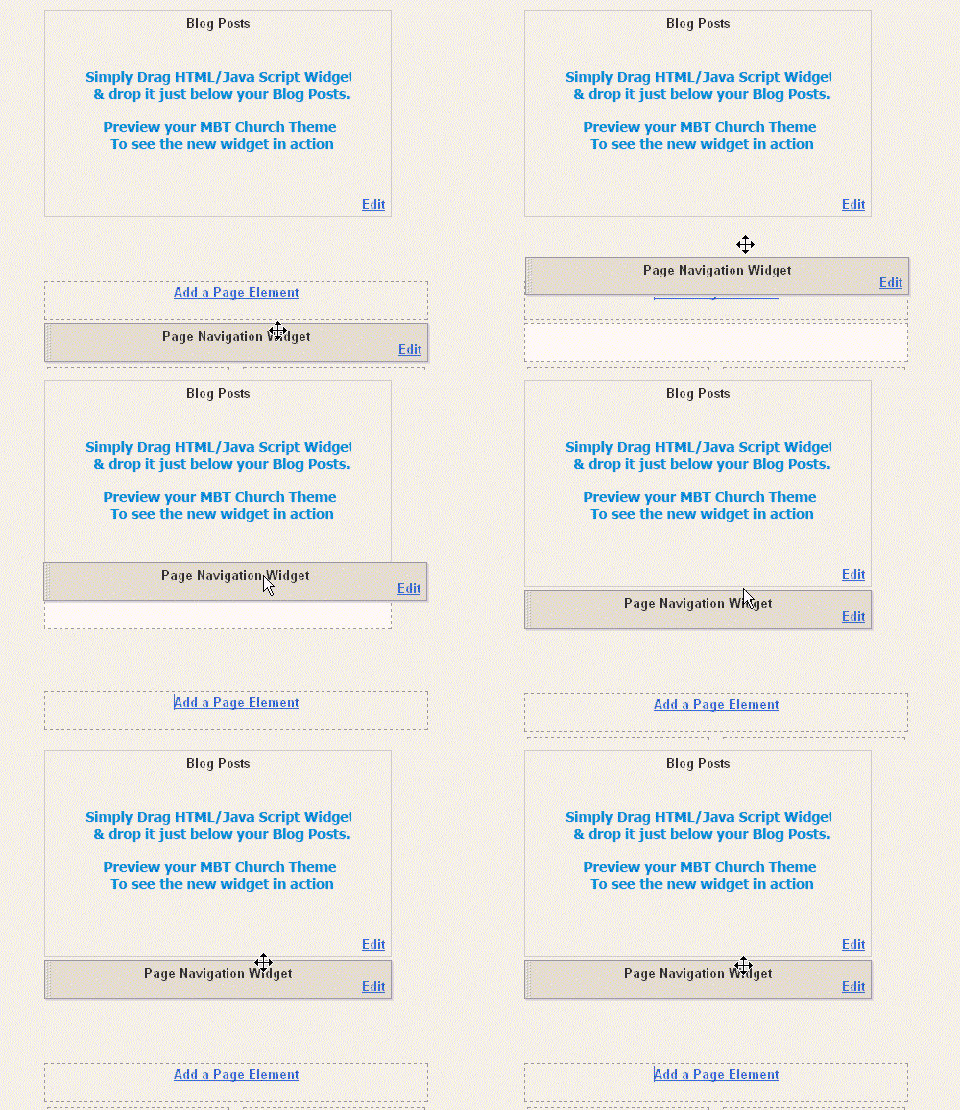
  6. Once you have pasted the code inside the widget, simply drag your HTML/Javascript widget to the area just below your posts and drop it there, as shown in the picture below,

Page-Navigation-Widget-For- blogspot blogs


That’s All!

Hope you enjoyed it. Let me know if anything is unclear.

READ MORE - Stylized Page Navigation Widget For Blogger|Blogspot