Showing posts with label button. Show all posts

Add Mashable Style Social Media to Blogger

You must have seen the Social Media widget that was used by Mashable for a certain period of time. This widget looks attractive and has nice effect to it, which makes it appealing to the eyes.This is great as you can get many visitors to your social media profile from them and is a great way to increase your contacts on other networks with the help of your blog. If you havent seen the widget before, then check the image below to get an idea.


Mashable Social Media Widget

It is very easy to add this widget to your blog, be it a Blogger(Blogspot) blog or a Wordpress or belonging to some other platform. However, as this blog is for blogger platform, we will explain how to add this Social Media widget to your Blogger blog.

To add it to your blog, visit the Design section of your blog and in the Page Elements section, click on Add a Gadget. In it, choose the HTML/Javascript option and paste the following code in it.


<style>
/* subscribe widget */
#subscribe1 { background:#f3f3f3; height:60px;width:288px; margin:0px 0px 15px 0px; padding:8px 5px; border:1px solid #e6e6e6; border-bottom:1px solid #e6e6e6; font-size:90%; }
.subscribe_icons { width:286px; margin:0px auto; }
.subscribe_icons li { display:inline; float:left; margin:0px 2px 5px 2px; width:52px; text-align:center; font-size:11px; }
.subscribe_icons a { display:block; padding:40px 0px 2px; -webkit-transition:all .2s ease-out; -moz-transition:all .2s ease-out; color:#444 !important; }
.subscribe_icons a:hover { color:#26b !important; text-decoration:none; -moz-box-shadow:0px 2px 4px hsla(0,0%,0%,.35); -webkit-box-shadow:0px 2px 4px hsla(0,0%,0%,.35); }
.subscribe_icons .subscribe_twitter a { background:url(http://i49.tinypic.com/2mq2es5.png) center top no-repeat; }
.subscribe_icons .subscribe_facebook a { background:url(http://i49.tinypic.com/52b7yv.png) center top no-repeat; }
.subscribe_icons .subscribe_rss a { background:url(http://i47.tinypic.com/maapvk.png) center top no-repeat; }
.subscribe_icons .subscribe_email a { background:url(http://i46.tinypic.com/2e4vgwy.png) center top no-repeat; }


</style>


<!--begin of social widget-->
        <div id='subscribe1'>
   
        <ul class='subscribe_icons'>

            <li class='subscribe_twitter'><a href='http://twitter.com/rahuljrark' rel='nofollow' target='_blank'>Twitter</a></li>

            <li class='subscribe_facebook'><a href='http://www.facebook.com/rahuljadhav' rel='nofollow' target='_blank'>Facebook</a></li>
            <li class='subscribe_rss'><a href='http://feeds2.feedburner.com/cooltricksntips' rel='nofollow' target='_blank'>RSS</a></li>
            <li class='subscribe_email'><a href='http://feedburner.google.com/fb/a/mailverify?uri=cooltricksntips&amp;loc=en_us' rel='nofollow' target='_blank'>Email</a></li>
</ul>


         <!--end .subscribe_icons--></div>


You have to change the username highlighted in red colour with your username and also the feedburner id for your blog. Now click on Save and check your blog. You should note that if your blog already uses symbols for ul and li tags, then you may face some problem with the alignment of this widget. If you are facing any problem with the placement of the widget then do tell me about it.
READ MORE - Add Mashable Style Social Media to Blogger

Adding StumbleUpon to Blogger

Like all other Social networks, StumbleUpon has also got some really elegant sharing buttons. StumbleUpon has got 6 different  sharing buttons.  You can choose any of these six. Integrating this into your blogger blog will require some template Edits.

image

How to add the Stumble Upon Counter Button  to Blogger?

1. First of all pick one of these 6 Button Styles.
2.Now Login to your Blogger Template and navigate to Design   >  Edit HTML and click on the check box which says “Expand Widget Templates”
3. Look for <data:post.body/> and immediately above it paste the following code.
<b:if cond='data:blog.pageType == "item"'>
<div style="float:right;padding:4px;">
<script expr:src='"http://www.stumbleupon.com/hostedbadge.php?s=5&amp;r=" + data:post.url'/>
</div>
</b:if>
4.Save the Template and you will see a vertical Stumbleupon counter(style 5) on your post. In the code above, you can change s=5 to s=1 or s=2 or s=3 or s=4 or s=6 to get the other button styles.
5. If you need the counter on every page, then remove the two lines of code in Green Color.
6. If you want the button to appear on the left side, then change float:right to float:left
READ MORE - Adding StumbleUpon to Blogger

Official Sharing Buttons on Blogger

Blogger has been rolling out new features to improve the looks and usability of the blogs. Blogger is now testing out a new Social Sharing icon set consisting of Email, Blogger,Twitter(with goo.gl shortener),Facebook and Google buzz buttons. The set looks simple and elegant with some cool mouse over effects. These Sharing buttons are now available in your regular dashboard.If you need to take a peek at these new sharing icons, then take a look at my post page(and try sharing it :P ).
You are still reading. So  i guess that you are really interested in implementing these Sharing buttons on your Blogger Blog.
Then don’t wait. Just follow these simple steps
  1. Login to Your Blogger Dashboard
  2. Go to Design > Page Elements and Click on the Edit Button near the Blog Posts Gadget and check the “Show Share Buttons” Option image
  3. You can Drag and Drop the Share buttons and place it where you want.image
  4. Now if everything went right, then you should be able to see the Share buttons on your Blog. If not then read on. :)
  5. If it didn’t appear then don’t worry, That is because you are having a modded template. Just Go to the Edit HTML page under the Design Tab , Check the “Expand Widget Templates”  Option and locate
    <p class='post-footer-line post-footer-line-3'>
    Or if that is not there then find
    <div class='post-footer-line post-footer-line-3'>
    Or if that is not there then find
    <data:post.body/>
    and place the  following code  just below any of these lines[whichever is present in your template].
    <div class='post-share-buttons'>
       <b:include data='post' name='shareButtons'/>
    </div>
    and Save your template.

Optional Tweaks

  1. Show the Sharing Buttons on Post pages only - Find the Following Code in your template
    <div class='post-share-buttons'>
       <b:include data='post' name='shareButtons'/>
    </div>
    and wrap it within conditional tags as
    <b:if cond='data:blog.pageType == &quot;item&quot;'>
    <div class='post-share-buttons'>
       <b:include data='post' name='shareButtons'/>
    </div>
    </b:if>
  2. Hide Some of the Sharing Buttons – If you want you can hide some of these buttons using CSS. For example to hide the Blogger sharing button, add the following code above  ]]></b:skin>  in your template
    .sb-blog{display:none}
    sb-email , sb-twitter, sb-facebook, sb-buzz and sb-blog are the different Button Classes. If you hide the mail or  buzz buttons, then it might look a little bad as these have rounded edges,
  3. How to add the text “Share this:” before the Share Buttons? – This was one of the questions asked in the comments.So here is how to do it.Go to Design > Edit HTML and “Expand Widget Templates”.Look for
    <b:if cond='data:post.sharePostUrl'>
    Just below that add
    <table border='0'><tr><td><b>Share this : </b></td><td>
    Now Look for the first occurrence of  
    </b:if>
    that comes after that. Just above that add
    </td></tr></table>
READ MORE - Official Sharing Buttons on Blogger

Increase your Link Visibility Using Web 2.0 Buttons

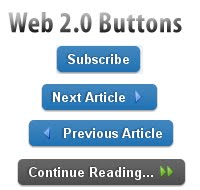
Now a days, Web 2.0 applications is being most popular to spice up the website with advanced new features. Web 2.0 applications is used to enhance the visibility of anything like Web templates, buttons, Icons and so on. Using Web 2.0 application, you can make your blog looks like professional and formal layouts.


Web 2.0 Buttons for Websites

I've been using the buttons provided by Google on my blog. Actually, we can call it as Web 2.0 buttons. Definitely, you may want to apply such professional looking buttons instead of undesirable links on your blog. Let see we can use the Web 2.0 buttons.

On Subscription Box

Watch on the top right sidebar of this blog, you'll see the subscribe button. Now, compare that subscribe button with your blog's subscription button. But the stupid Internet Explorer doesn't supports for curved buttons. So it may be undesirable view on Internet Explorer.


As Read More Button

Go to the Homepage of this blog. And watch for the Continue Reading button that you can see below each post. This one is click able. When you see that button you may intend to click it.

Have you noticed that each of the Blogger Template which I have made consist of read more link?

Older Post and Newer Post
Many Blogger blog users were having problem with page navigation links. Older post, Newer Post and Home links were not visible but fortunately , I solved that problem. You can see these button on each post of this blog.

These are the existing place where I used Web 2.0 buttons. But, you can use everywhere that you want.

Let see how you can use this on your blog. First off all, download CSS code from here and upload it on your server. Add the Link to CSS where you have uploaded. For example: <link rel="stylesheet" href="/style.css" type="text/css"  /> 

Replace /style.css with the URL where you have hosted CSS code. Now, you are ready to use these button. Use this code to embed Web 2.0 buttons on your blog:

<button class="sexybutton"><span><span><span class="ok">Submit</span></span></span></button>

You found the complete information and tips from here.

Hope you've used such nice looking Web 2.0 buttons on your website and blog. Let me know if there is any obstacle and error while doing this process on your blog.
READ MORE - Increase your Link Visibility Using Web 2.0 Buttons
Few days ago Twitter has introduced their own tweet buttons for web masters.Now you can use this twitter button directly share your posts through twitter without any third party web site.So you and your visitors don't want to authenticate any third party web site to access your Twitter account.These new tweet button loads very fast and anyone can share your article with in few seconds.There are 3 types of Beautiful Tweet buttons : Vertical count, Horizontal count and No count.Here I am going to describe how to add these Twitter buttons to your blogger blog.

1.Login to your blogger Dashboard--> Design- -> Edit HTML

2.Click on "Expand Widget Templates"

3.Scroll down to where you see below code:

<div class='post-header-line-1'/>

4.Now Copy your "Twitter tweet button" code and paste it just below the above code.

NOTE: If you can't find <div class='post-header-line-1'/> in your template, paste your "Twitter tweet button" code just before <data:post.body/> .

Code 1 : Vertical Count
<b:if cond='data:blog.pageType == "item"'>
<div style='float:right;margin-right:10px;'>
<a href="http://twitter.com/share" class="twitter-share-button" data-count="vertical" data-via="TWITTER-USERNAME">Tweet</a><script type="text/javascript" src="http://platform.twitter.com/widgets.js"></script>
</div>
</b:if>

Result:


Code 2 : Horizontal Count
<b:if cond='data:blog.pageType == "item"'>
<div style='float:right;margin-right:10px;'>
<a href="http://twitter.com/share" class="twitter-share-button" data-count="horizontal" data-via="TWITTER-USERNAME">Tweet</a><script type="text/javascript" src="http://platform.twitter.com/widgets.js"></script>
</div>
</b:if>

Result:


Code 3 : No Count
<b:if cond='data:blog.pageType == "item"'>
<div style='float:right;margin-right:10px;'>
<a href="http://twitter.com/share" class="twitter-share-button" data-count="none" data-via="TWITTER-USERNAME">Tweet</a><script type="text/javascript" src="http://platform.twitter.com/widgets.js"></script>
</div>
</b:if>

Result:


Note :
Remember to replace "TWITTER-USERNAME" with your real Twitter username.

If you want to show Tweet buttons not only Post pages but also Home page,Archive pages,Label pages,etc... , then remove "<b:if cond='data:blog.pageType == "item"'>" and "</b:if>" from above codes.

5.Now save your template.

You can view more info from here:

http://twitter.com/goodies/tweetbutton

Want to build a custom tweet button for your site? Check out developer documentation for the Sharing API to provide the same Tweet Button sharing functionality with your own style :

http://dev.twitter.com/pages/tweet_button
READ MORE -